
Prerequisites
Roles are in beta and enabled per organization. If you don’t see role options when inviting a user, reach out to your Overflow contact to have them turned on for your account. Only Organization admins can invite new users and assign roles.How Roles work
A role is a predefined bundle of access that matches a common church position. You pick the role that fits the person’s job, and the right access follows automatically. Roles are not customizable, so you don’t have to configure permissions one by one. For multi-campus organizations, most roles can be scoped by location so a campus pastor sees only their campus. See Locations for how location scoping works.Invite a user and assign a role
1
Invite the user
As an Organization admin, open your team settings and select Invite user. Enter the person’s email address.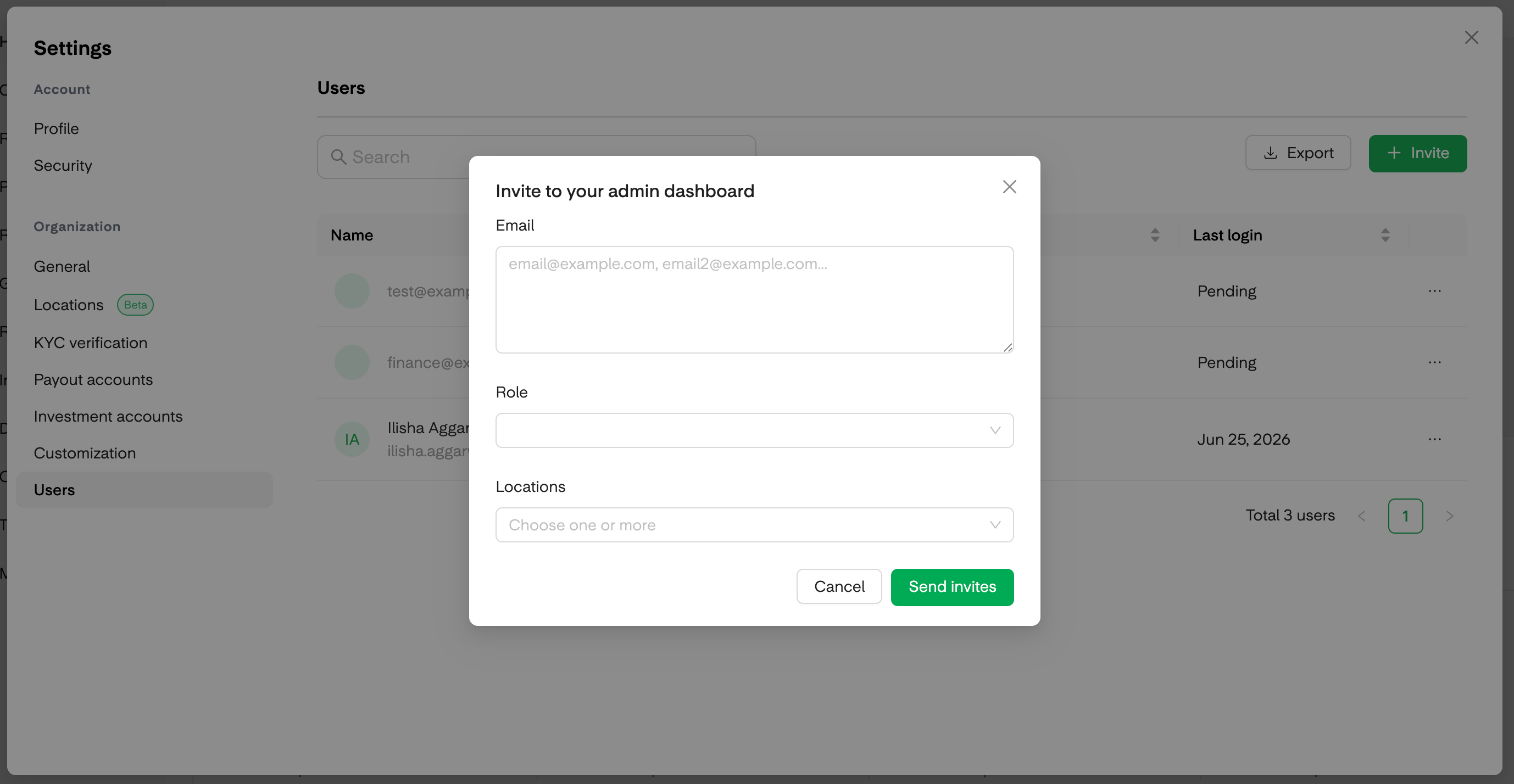
2
Assign a role
Choose the role that best fits the person’s job. See the table below for what each role includes.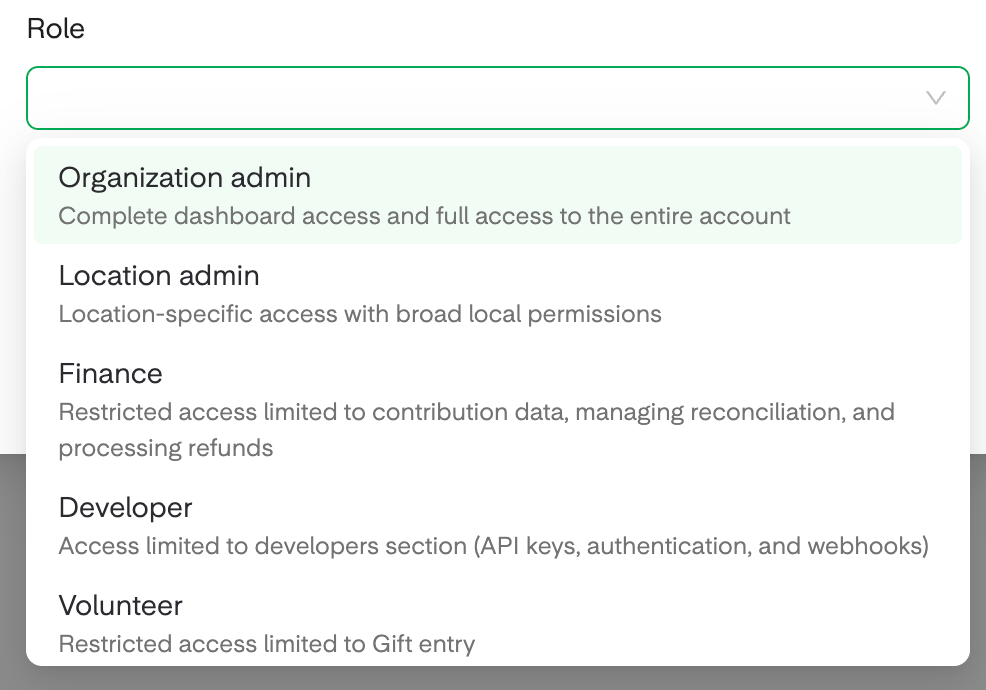
3
Scope the role by location (optional)
If the person should only see certain campuses, limit their access to those locations. A campus pastor, for example, is typically given the Location admin role scoped to their campus. Send the invitation to finish.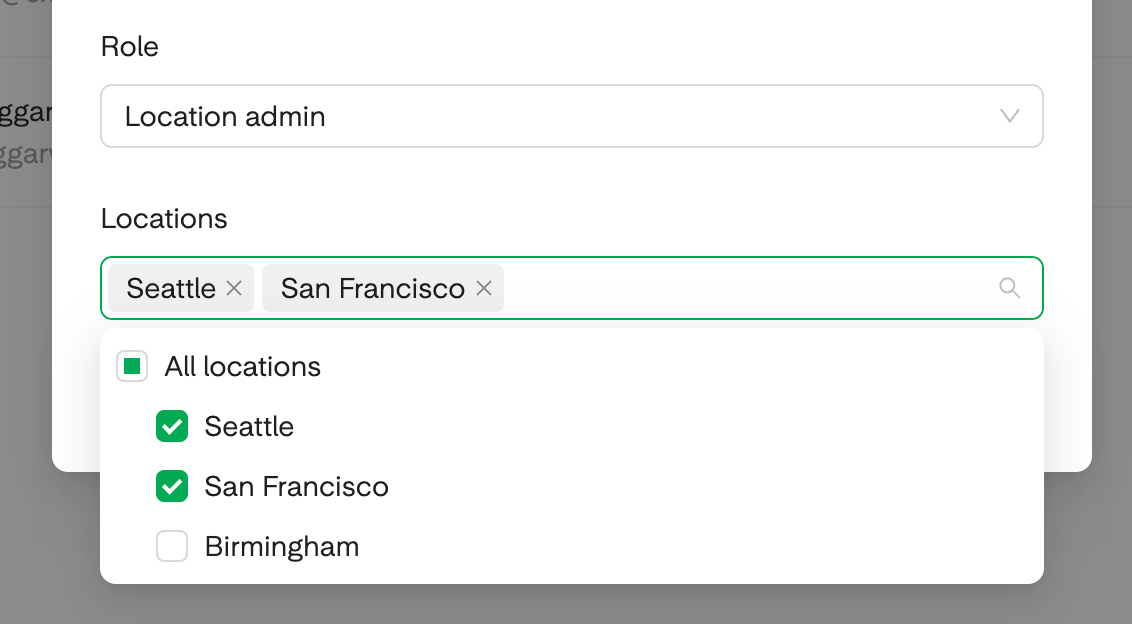
The six roles
The Tap dashboard is not scoped by location today, so Tap access applies across the organization regardless of which locations a user is assigned.
Frequently asked questions
Who can invite new users?
Who can invite new users?
Only Organization admins. If you need to add a teammate and don’t have the option, ask an Organization admin on your team to send the invite.
Can I customize what a role can do?
Can I customize what a role can do?
Not today. Roles are predefined so you can assign the right access quickly and safely. Pick the role that most closely matches the person’s job.
Can one user cover more than one campus?
Can one user cover more than one campus?
Yes. When you scope a role by location, you can assign the user to more than one campus. Their access will apply across every location you select.
Does the Tap role only apply to one campus?
Does the Tap role only apply to one campus?
The Tap dashboard is not location-scoped today, so a Tap only user has access across the organization.