
Prerequisites
Business payments are in beta and enabled per organization. If you don’t see the option in the giving flow or in Gift Entry, reach out to your Overflow contact to have it turned on for your account. Business gifts require a card or a bank account. Digital wallets and donor-advised fund gifts aren’t supported for business payments.How a donor gives from a business
Share these steps with donors when they ask how to attribute a gift to their business. A donor uses their normal account. Business payments are a way to tag a gift as business, not a separate business login or profile switcher.1
Mark the gift as business during giving
On the payment step, the donor selects This gift is from a business. Card and bank account are the supported methods for business gifts.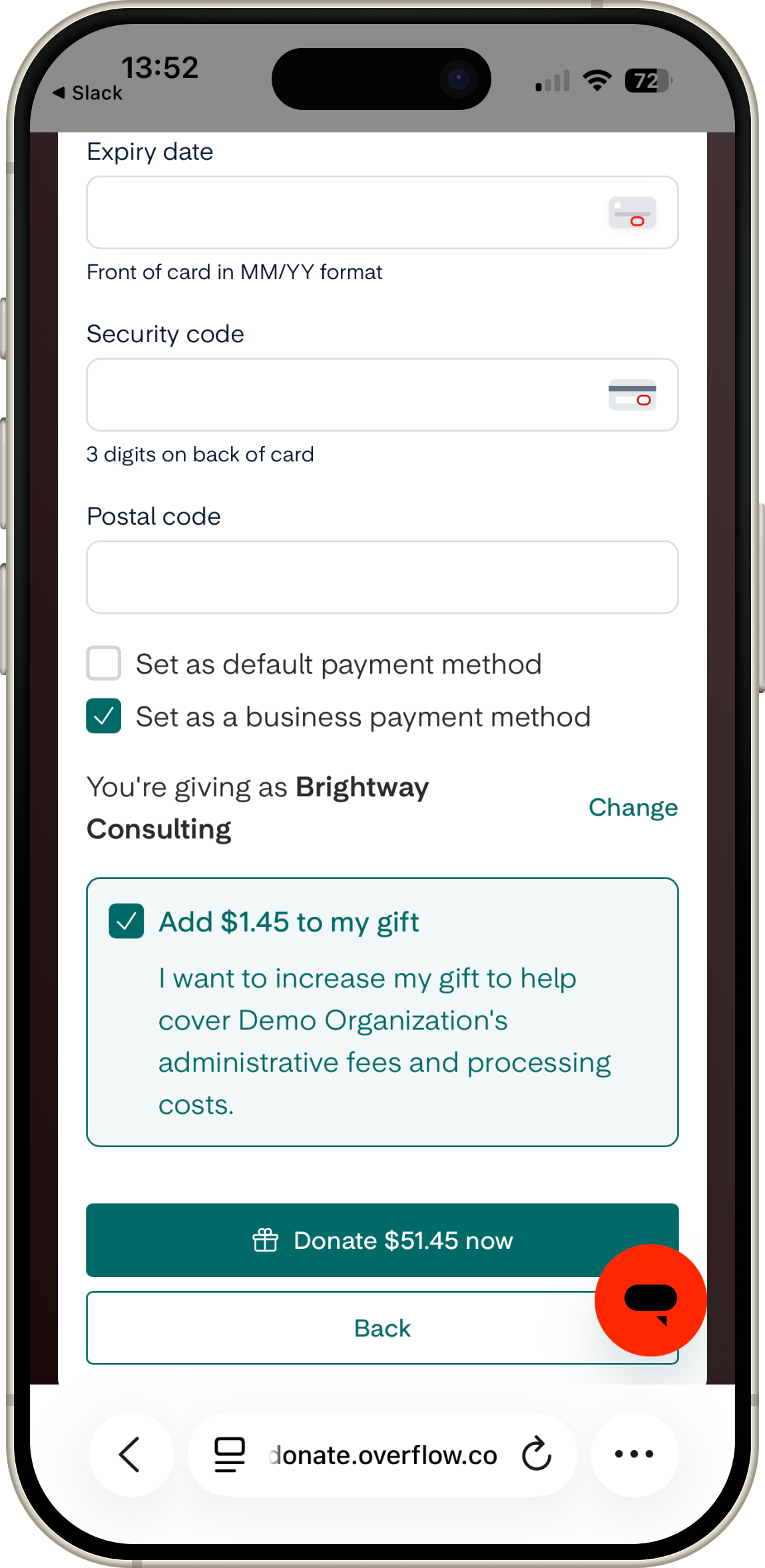
2
Pick or create the business
The donor either chooses one of their saved businesses or adds a new one. Only the business name is required. A billing address is optional and helps with receipts. Each business name must be unique for that donor.For bank gifts, the donor also confirms an authorization checkbox before the gift is submitted.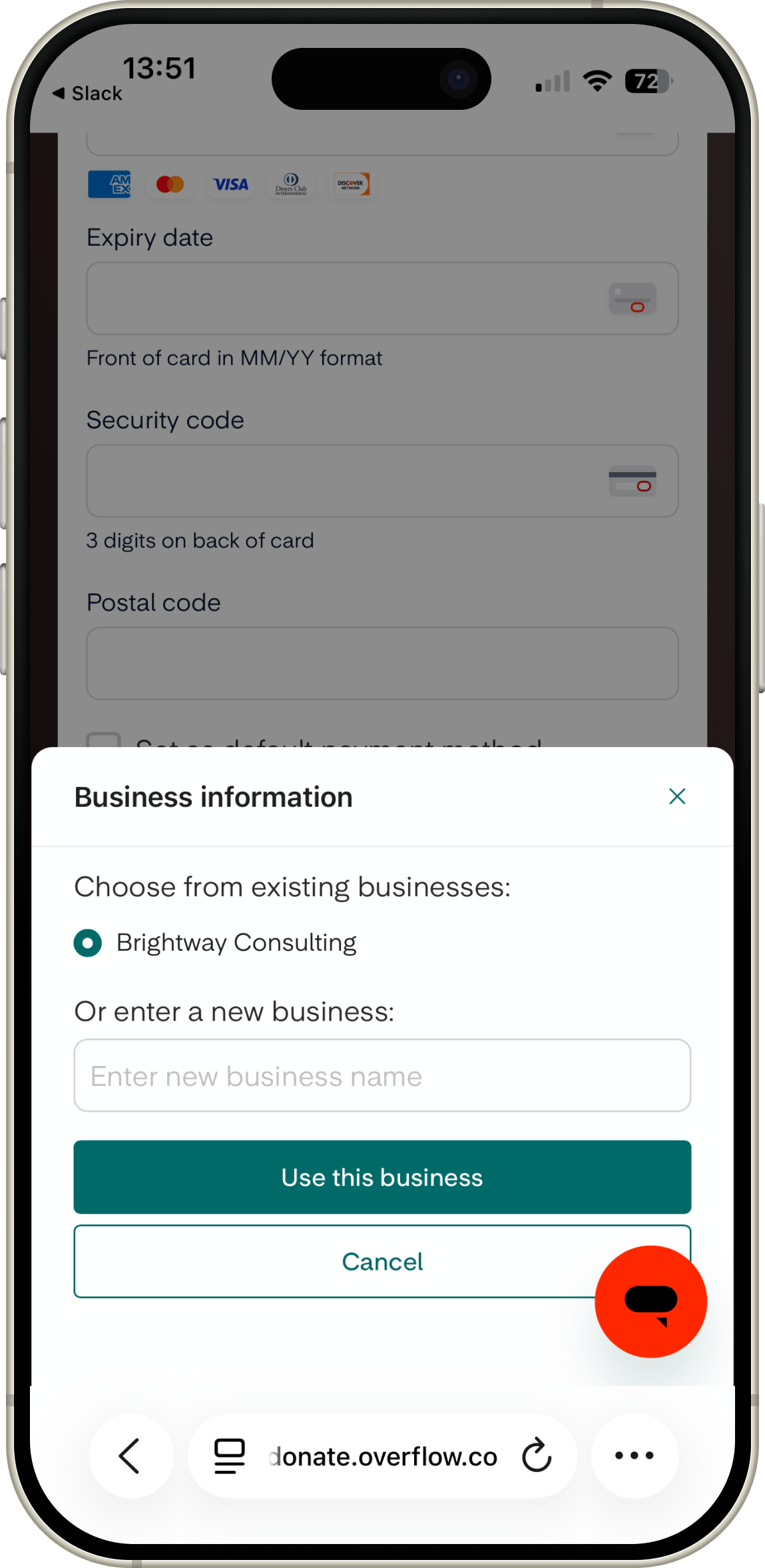
3
Finish the gift
The donor completes the gift as usual. For a card gift, the business is attached as the attribution and billing address on the charge; the cardholder name stays the donor’s. For a bank gift, the business name is used as the account holder, which prevents name-mismatch declines. The receipt uses the business’s billing details, and if the business has its own email, the receipt goes to that email.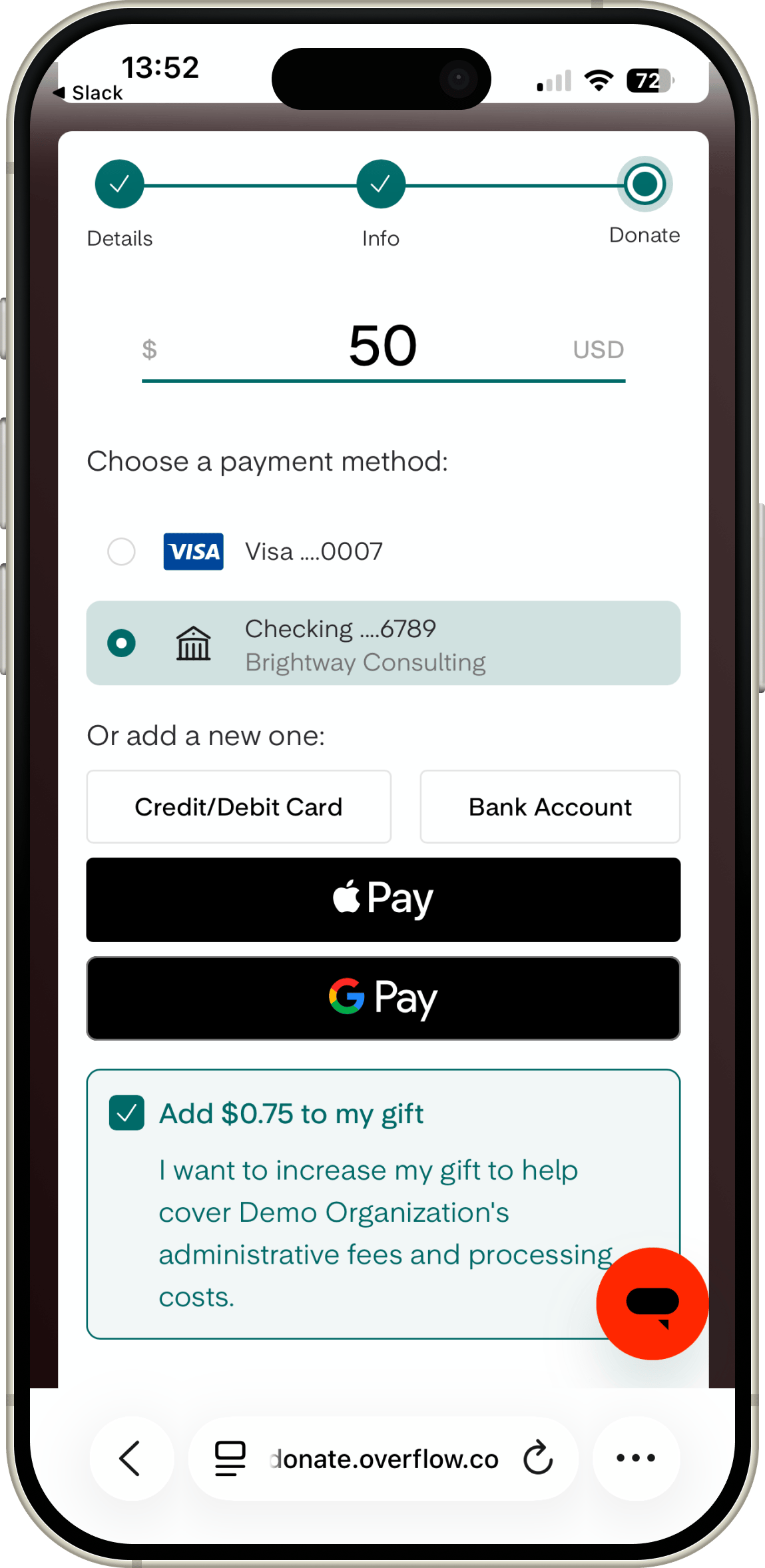
4
Manage businesses in account settings
A donor can review, rename, or update the businesses on their account from account settings. Payment methods on file show the business name as a label alongside the card or bank details. A business can be attached when a donor makes a new gift or restarts a gift, including restarting a recurring gift. A donor can’t tag an already-saved payment method as business from settings.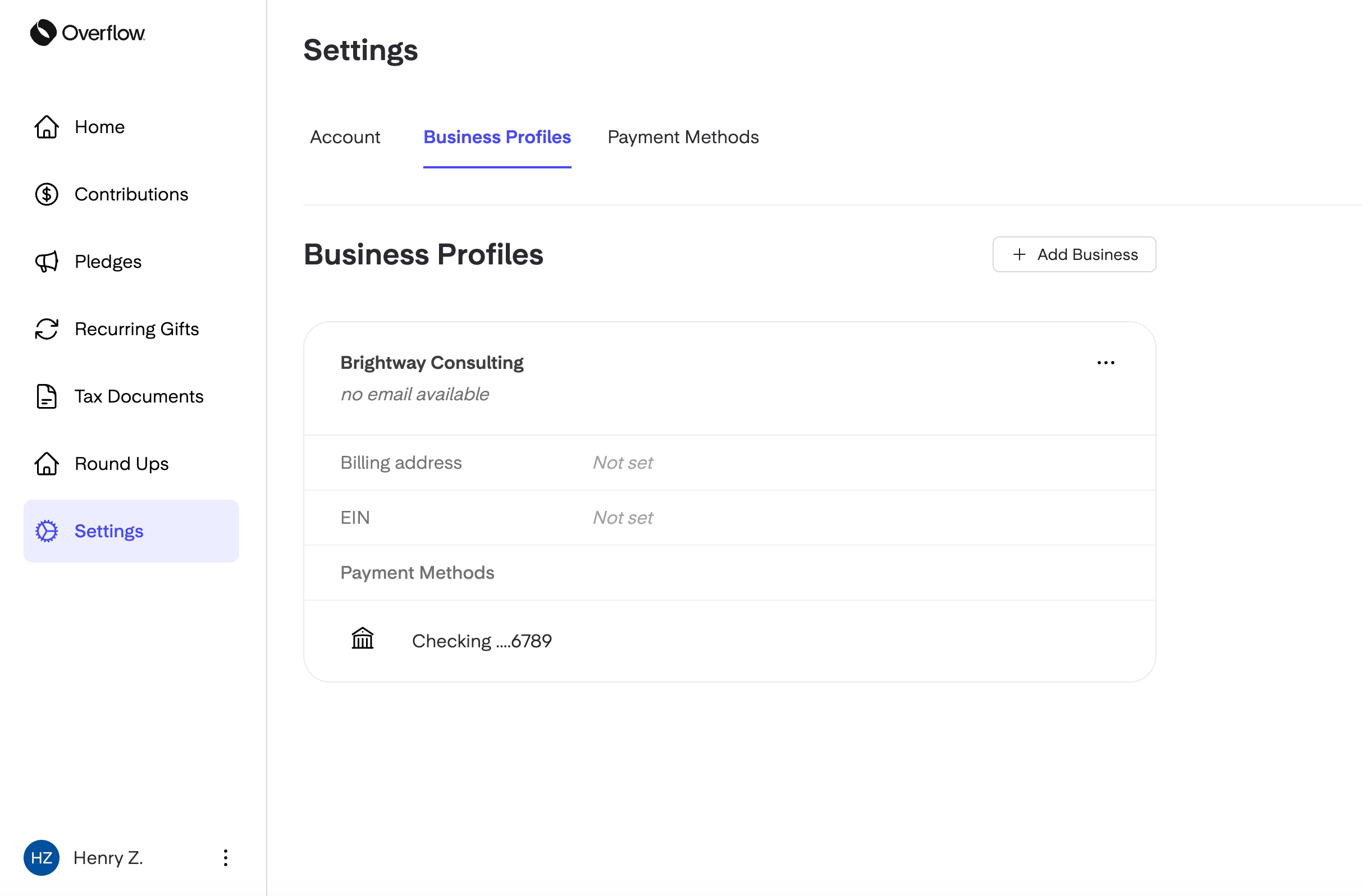
How an admin logs a business gift
Admins use the same tagging in Gift Entry and the Virtual Terminal when recording an offline gift, a check, or a phone gift on behalf of a donor.1
Pick the donor and start the gift
In Gift Entry or the Virtual Terminal, search for the donor and start a new gift the way you normally would.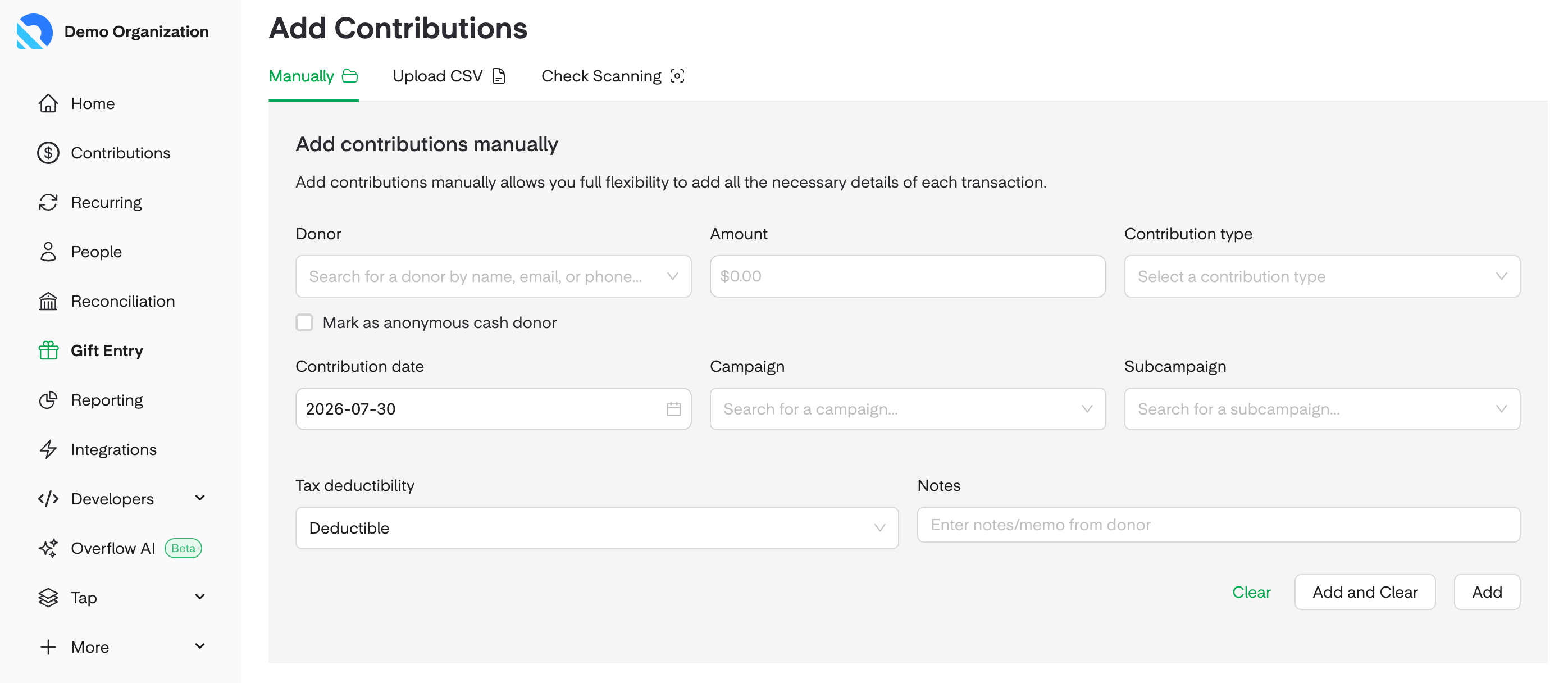
2
Mark the gift as from a business
Turn on This gift is from a business on the gift form. Select one of the donor’s existing businesses, or add a new one inline by entering the business name and, optionally, a billing address.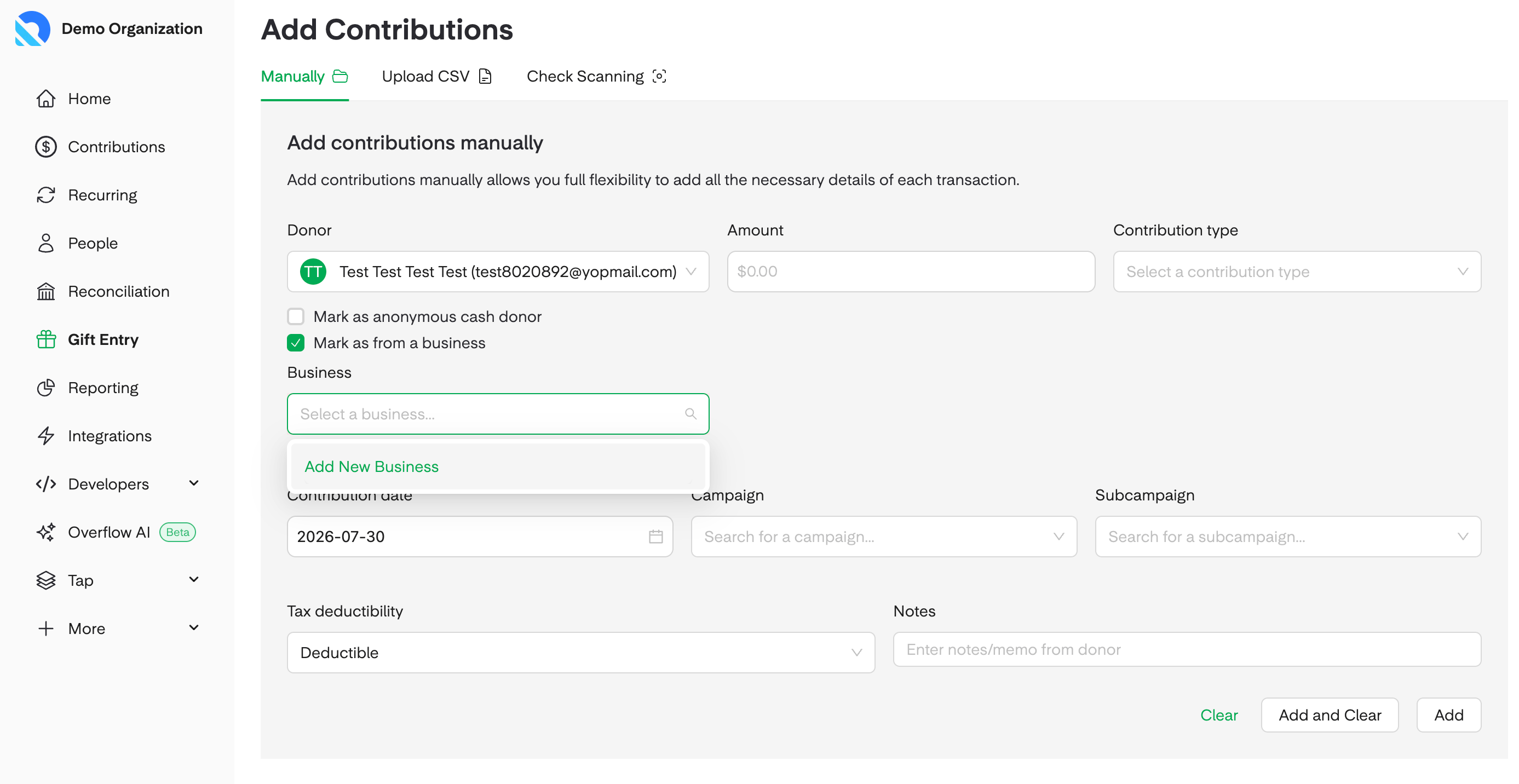
3
Review where business gifts appear in the dashboard
Once the gift is saved, the business name shows under the donor’s name in Contributions and Recurring. Open the gift’s side drawer to see the full business details on that gift. On the donor’s detail page, a Business Profiles tab lists every business tied to that donor along with the gifts each one has given.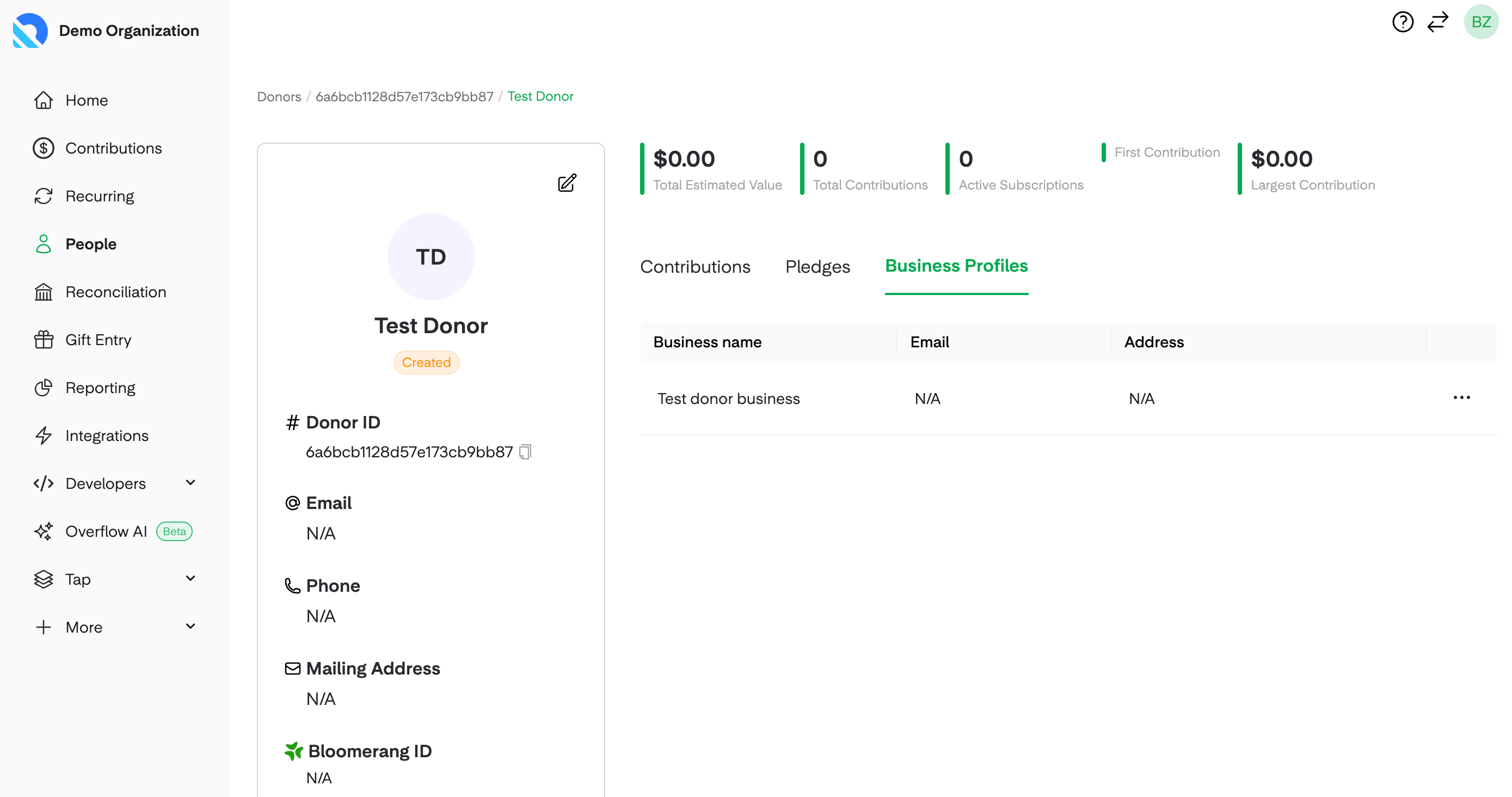
Statements and receipts
Statements can be filtered by Personal or Business. A business statement shows the business’s name, and its EIN when the business has one on file. Receipts use the business’s billing details, and if the business has an email on file, the receipt is sent to that email in addition to the donor.Who can edit a business
Donors manage their own businesses from account settings. Admins can only edit a business on a donor record that isn’t linked to a donor login. This keeps a donor’s own record of their business under their control.FAQ
Does a business need its own login?
Does a business need its own login?
No. A donor uses their normal account and tags the gift as business at the time of giving. There’s no separate business login.
Can Apple Pay or Google Pay be used for a business gift?
Can Apple Pay or Google Pay be used for a business gift?
Not for this release. Business gifts must be paid with a card or a bank account.
Is an EIN required?
Is an EIN required?
No. The business name is the only required field. If a donor provides an EIN, it appears on their business statements.
Can a donor tag a saved card or bank account as business from settings?
Can a donor tag a saved card or bank account as business from settings?
Not from settings. A donor attaches a business when they make a new gift or when they restart a gift, including restarting a recurring gift.
How do I log a check that was written from a business?
How do I log a check that was written from a business?
Log the gift in Gift Entry, turn on This gift is from a business, and select or add the business inline. The check is then recorded as a business gift on the donor’s record.
Can a business be removed?
Can a business be removed?
A business can’t be removed while a payment method is still linked to it. Once no payment method is attached, the business can be removed from the donor’s account. Giving history is always preserved on the donor’s record and in reports.