
Before you start
- Organization admins, Location admins (in their locations), and Finance can edit and cancel recurring gifts.
- If you don’t see Edit, editing isn’t turned on for your organization. Contact Overflow support.
- Ending and locking gifts are also turned on by Overflow on request.
Find a gift
Go to Recurring. Filter by donor, location, fund, subfund, frequency, amount, status, personal or business, or Managed by. Select a gift to open its details, including when it ends.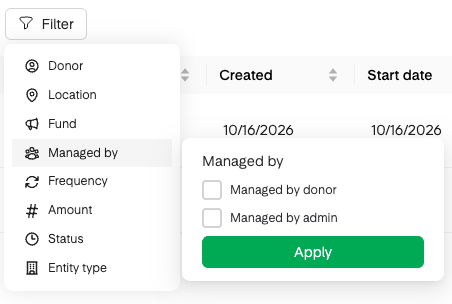
Edit a gift
1
Open the edit form
From the row menu, select Edit recurring gift. Or select Edit in the gift’s details.
2
Make your changes
Change the amount, frequency, start date, location, fund, or subfund.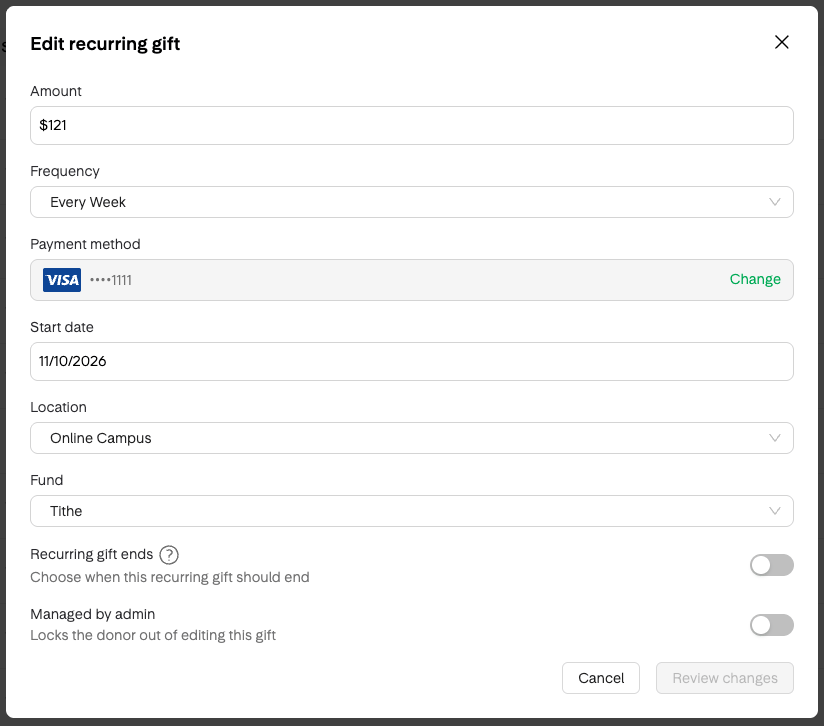
3
Review and save
Select Review changes to see each change, old next to new, and the new last gift date. Then select Confirm and save.
- You can edit active and pending gifts.
- Paused, failed, and cancelled gifts, and gifts imported from another system, can’t be edited.
- Changing the start date or frequency moves every future charge. The start date must be at least 12 hours out.
- Frequencies are the ones your organization offers.
- A gift can’t be changed to Every 1st & 15th. Changing one away from monthly cancels its other half.
- Some organizations can only change location, fund, and subfund. Amounts and schedules stay as they are.
Change the payment method
If your organization uses the current Virtual Terminal, select Change next to the payment method in the edit form. Virtual Terminal opens so you can pick or add a card or bank account. For gifts set up in Virtual Terminal the amount stays the same. If the donor set up the gift and covers fees, the new total shows before you confirm. If you don’t see Change, contact Overflow support.Set when a gift ends
Turn on Recurring gift ends and choose Number of gifts, End date (up to 5 years out), or Total amount. You see the last gift date and the remaining value. After the last gift, the gift stops and the Ends row in its details shows Completed.Lock a gift
Turn on Managed by admin. The donor sees the gift as managed by your organization. They can’t edit or cancel it, or remove the card or bank account paying for it. A lock icon marks the gift in your list. Turn Managed by admin off to hand the gift back to the donor.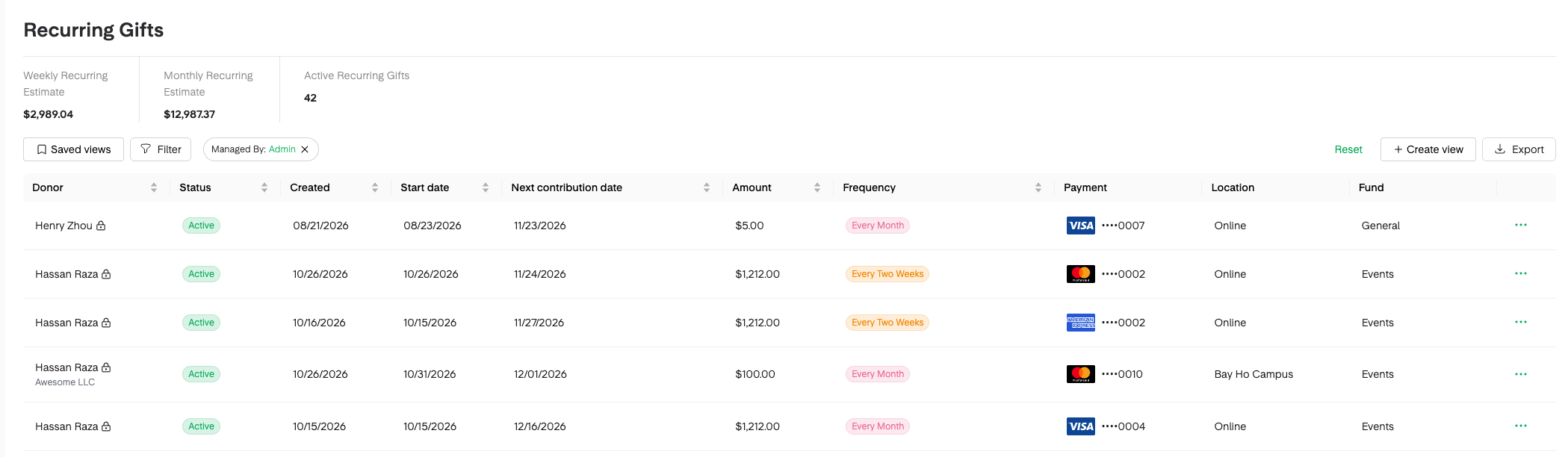
Cancel a gift
Select Cancel recurring gift, add a reason, and confirm.What donors are told
When you change a gift, the donor gets an email listing what changed and noting that an admin made the change. Donors who chose text receipts get a text instead. Cancelling a gift also sends the donor a notice.Choose which frequencies donors can pick
Go to Settings > Giving experience and use Recurring giving frequencies. The options are Every Week, Every Two Weeks, Every 1st & 15th, Every Month, Every Quarter, and Every Year. Choose at least one. One-time giving is always available. Quarterly and yearly depend on your organization’s payment setup.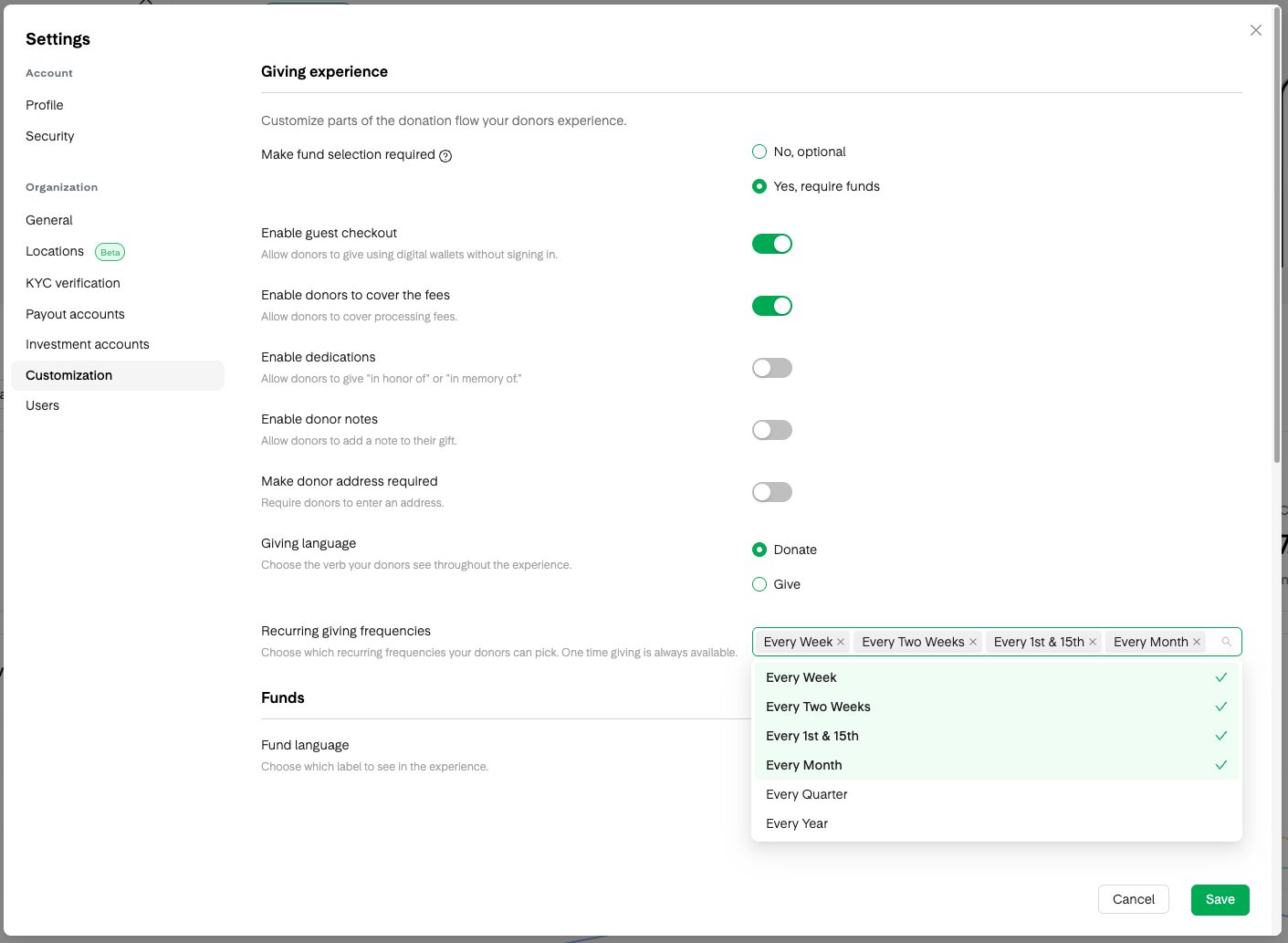
Export
Export from the Recurring page. When ending and locking are on, the file shows who manages each gift.Frequently asked questions
Why can't I edit this gift?
Why can't I edit this gift?
It may be paused, failed, cancelled, or imported from another system.
A donor says they can't change their gift. Why?
A donor says they can't change their gift. Why?
The gift is locked. Make the change for them, or turn off Managed by admin.
What happens after the last gift?
What happens after the last gift?
The gift stops, and the Ends row in its details shows Completed.
Can I type in a new card from the edit form?
Can I type in a new card from the edit form?
No. Select Change to use Virtual Terminal.